레이블이 Tips인 게시물을 표시합니다. 모든 게시물 표시

2018년 10월 15일 월요일

Free 3D Viewer


BRViewer is a free 3D model viewer.

https://software.naver.com/software/summary.nhn?softwareId=GWS_002944

It allows you to view 3D model.
(iges, igs, stl, step, stp, obj, las, dwg, dxf, ifc, ifczip, 3ds, lus)


Open and review various 3D model data.
iges, igs, stl, step, stp, obj, las, dwg, dxf, ifc, ifczip, 3ds, lus

free iges viewer, free igs viewer, free stl viewer, free step viewer, free stp viewer, free obj viewer, free las viewer, free dwg viewer, free dxf viewer, free ifc viewer, free ifczip viewer, free 3ds viewer, free lus 

2018년 10월 4일 목요일

Tutorial - Clover Leaf Interchange Design


Tutorial - Trumpet Interchange Design


Tutorial - Earthworks Quantities


Tutorial - Drainage Design & Retaining Wall Design


Tutorial - Cross section Design & Creating Ditch & Cross section Design


Tutorial - Road Plan and Profile & Cut / Fill Slope & Pavement


Tutorial - Design of Vertical Alignment & Modify of Vertical Alignment


Tutorial - Design of Horizontal Alignment & Modify of Horizontal Alignment


Tutorial - Create 3D Surface(TIN) & Create Alignment & Setting of Geometric Standard


About BimRoad


Quick start guide
1. Create 3D Surface(TIN)
2. Create Alignment & Setting of Geometric Standard
3. Design of Horizontal Alignment
4. Modify of Horizontal Alignment
5. Design of vertical Alignment
6. Modify of Vertical Alignment
7. Road Plan and Profile
8. Cut / Fill Slope & Pavement
9. Cross section Design
10. Creating Ditch & Cross section Design
11. Drainage Design
12. Retaining Wall Design
13. Earthworks Quantities
14. Trumpet Interchange Design
15. Clover Leaf Interchange Design

2018년 1월 18일 목요일

The expansion design for road using BimRoad.

BimRoad에 새롭게 추가된 확포장 계획 기능에 대해서 설명을 할까 합니다. 확포장 계획은 v2.5.18에 추가된 기능으로 그동안 많은 BimRoad 사용자들이 요청하던 기능 중 하나입니다.
BimRoad의 확포장 계획의 특징은 횡단에서뿐만 아니라 평면의 polyline을 통해서도 할 수 있다는 점입니다.평면의 polyline을 통해서 하는 경우 좀 더 빠르고 편리하게 확포장 설계를 진행할 수 있습니다.

횡단에서 확포장 하는 방법


확포장 계획 메뉴

메뉴를 클릭하면 아래와 같은 dialog가 나타납니다.


확포장 계획 센터

위 dialog에서 확포장 계획의 모든 기능을 사용할 수 있습니다.

좌측 확장 계획 방법

- [좌측 확장 계획 ] 버튼을 클릭하고 확포장 계획 위치를 마우스로 클릭합니다.- D 옵션 입력 후 중심으로부터의 거리를 키보드로 입력할 수도 있습니다.
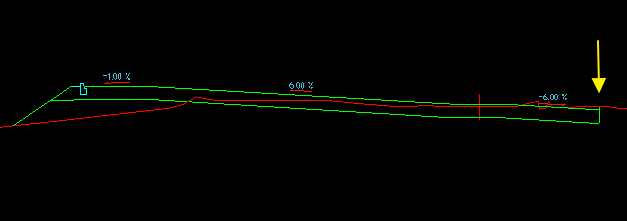
좌측 확장 계획시 노란색 화살표 위치 클릭 후 횡단 형태

우측 확장 계획 방법

- [우측 확장 계획] 버튼을 클릭하고 확포장 계획 위치를 마우스로 클릭합니다.- D 옵션 입력 후 중심으로부터의 거리를 키보드로 입력할 수도 있습니다.
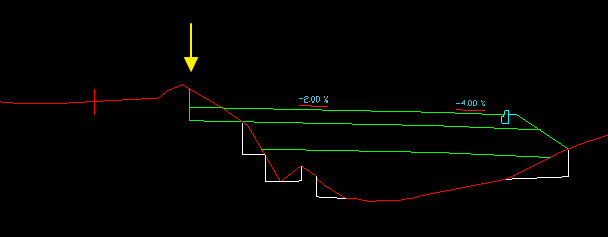
우측 확장 계획시 노란색 화살표 위치 클릭 후 횡단 형태

양측 확장 계획 방법

- [양측 확장 계획] 버튼을 클릭하고 확포장 계획 위치 좌/우의 위치를 마우스로 클릭합니다.- D 옵션 입력 후 중심으로부터의 거리를 키보드로 입력할 수도 있습니다.
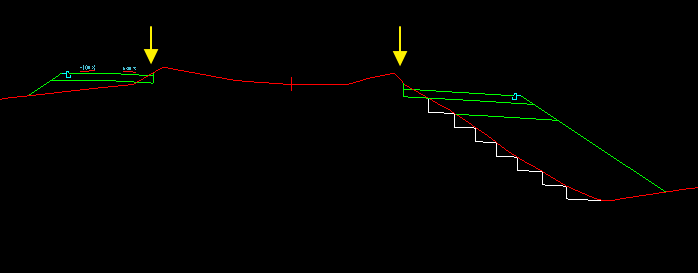
양측 확장 계획시 노란색 화살표 위치를 클릭 후 횡단 형태

양측 확장 계획 후 재 계산된 수량

횡단에서 확장 계획을 하면 평면에도 자동으로 반영이 됩니다.아래는 횡단에서 확장 계획을 진행 한 후 반영된 평면 선형의 도로폭 형태입니다.
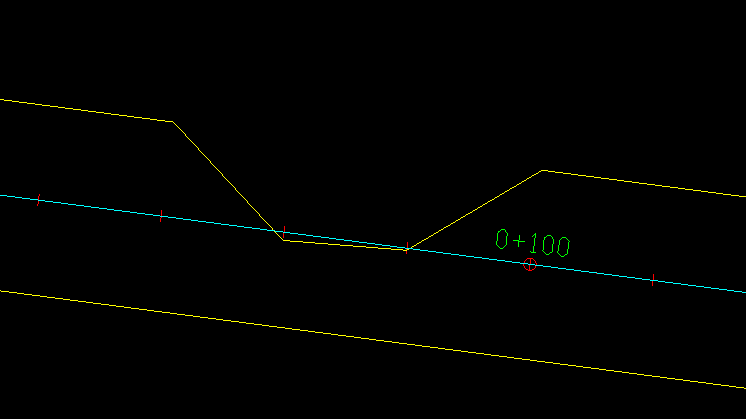

획단 확포장 계획이 반영된 평면 도로폭선

평면에서 확장선(polyline) 가져오기를 통해서 확포장 계획하기

평면에서 확장선 가져오기 기능을 이용하면 좀 더 빠르고 편리하게 확장 계획을 할 수 있습니다.아래는 평면에서 확장선 가져오기 진행 방법입니다.1. [확포장 계획 센터] dialog에서 가장 아래쪽에 있는 [평면에서 확장선 가져오기] 버튼을 클릭합니다.2. 평면선형을 선택합니다.3. 확장선으로 적용할 polyline을 선택합니다.
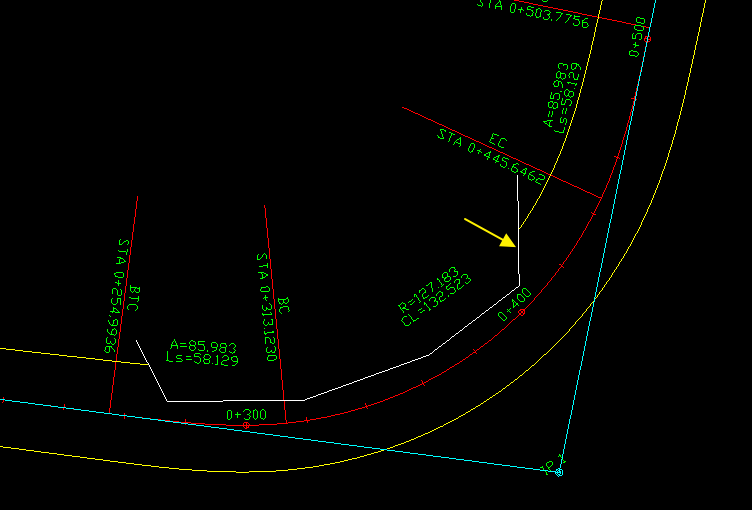

노란색 화살표가 확장선으로 사용된 polyline입니다.


아래는 평면에서 확장선 가져오기로 확포장 계획을 하고 나서 횡단에 자동으로 반영된 모습입니다.


덧 씌우기 횡단 계획

덧 씌우기 기능은 횡단에서만 사용할 수 있습니다.평면에서 확장선 가져오기를 한 경우에도 횡단에서 덧씌우기를 적용할 수 있습니다.아래는 덧 씌우기 층 설정 dialog입니다.


덧 씌우기 층

체크박스에 선택된 만큼의 두께로 덧씌우기가 적용되며, 반드시 순서대로 선택해야 합니다.

덧 씌우기 방법

[덧 씌우기 계획] 버튼을 클릭하면 양측 확장 계획과 마찬가지로 좌/우 위치를 마우스로 클릭합니다.[D] 옵션을 입력하면 키보드로 정확한 거리를 입력할 수 있습니다.아래는 덧 씌우기가 적용된 횡단의 모습입니다.
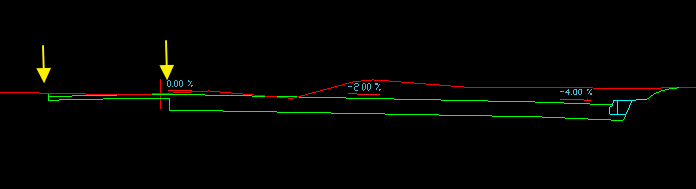
노란색 화살표 위치를 덧씌우기 위치로 지정한 횡단

덧 씌우기 쐐기부 경사 설정 방법

덧 씌위기 층 설정 dialog를 통해서 덧 씌우기 쐐기부 경사를 설정할 수 있습니다.
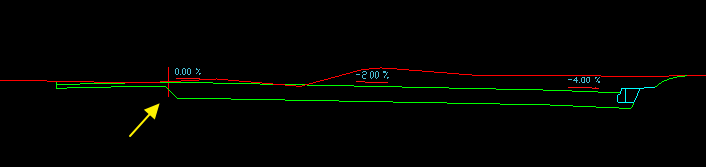

덧 씌우기 구간 쐐기부 경사를 1:1로 지정한 횡단

2017년 12월 5일 화요일

Measures area, length by tools in the dwg viewer.

To measure area, length of the entities in the dwg file, you can use some measure tools in the BRViewer.
BRViewer is very fast and useful free dwg viewer.
BRViewer provides useful measure tools to check dwg file.


These are Closed Area, Pick Area, Level length, Length, Object Length.

Closed Area can measure area of the closed area in the varius curves and lines.
Pick Area can measue area of which user picks points.
Level Length can measure length of horizontal of which user picks points.
Length can measure length of which user picks points.
Object Length can measure length of entities that use selects.

All features can display text with result value.

Especially, these things can be used for civil engineers usefully.

Following is the movie about these things.


2017년 11월 21일 화요일

Easy way to print a coloring paper for children.

This is very easy way to print a coloring paper for children.
This way is using BRViewer.


2017년 11월 7일 화요일

빠르고 간편한 feed back 기능

안녕하세요. 하니소프트입니다.
BimRoad 사용자에게 보다 빠른 Feed Back을 위하여 홈페이지 게시판을 거치지 않고
BimRoad 프로그램에서 바로 문의 사항을 보내실 수 있습니다.
BimRoad "도움말" -> "QA" 리본을 선택하신 후 Feed Back 창에
문의 내용 및 파일을 첨부하셔서 보내시면 즉시 문의하신 이슈의 답변을 받으실 수 있습니다.
감사합니다.